

Calibrated Clay (Part 1)
Integrating ZBrush into CAD jewelry design
By Darla Alvarez, GIA Jewelry Design & Technology Instructor
ZBrush, a digital clay sculpting software, is making its way into jewelry design more and more, but traditional CAD modeling is not going away anytime soon. While on the surface these two methodologies seem conflicting, they are actually quite complementary, and it is worth considering adopting both for the most design flexibility. In part one of this article series, we will look at ways to use a ZBrush model with NURBS tools (which are only found in CAD modeling programs), and, in part two, we will look at production friendly tools within ZBrush.
Once a model is sculpted in ZBrush, other engineered elements may need to be added, most commonly gemstones and prongs. Exporting a mesh out of ZBrush and importing it into a CAD program such as Rhino or Matrix is not difficult, but using traditional NURBS tools on meshes is. Most commands will not work with meshes. Two commands, however, will give us enough information to use our NURBS commands and builders with our ZBrush model.
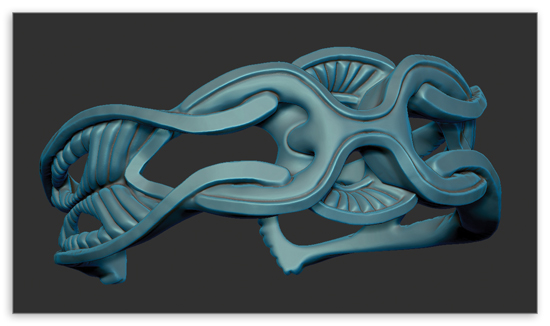
1. For our example, we are going to look at ways to add gemstones and settings to a bracelet. To begin with, taking a ZBrush model and exporting it as an STL is almost always going to give us the most usable and complete mesh.
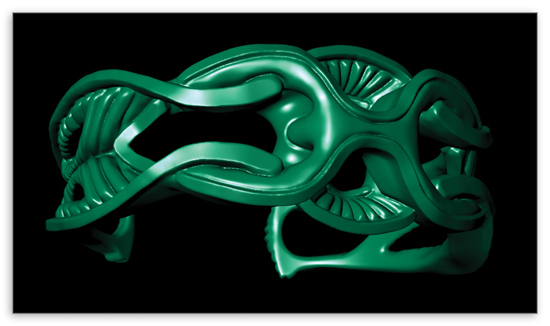
2. STL files, being such a universal file type and the standard for prototyping, work well across multiple software platforms, including Rhino and its most common jewelry plug-in, Matrix.
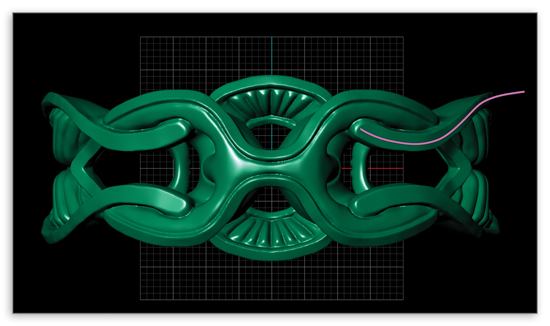
3. Once in Matrix, as stated previously, we do not have a lot of tools we can use right out of the box, making gem placement difficult. We can neither extract isocurves nor place gems directly on the surface. We can, however, create curves on our surface using the curve command “project.” First, decide which viewport the curves should appear in. For the bracelet, we are going to add gemstones to the bars and draw the curve in the Looking Down viewport. Create a planar curve as it is to appear on the model.
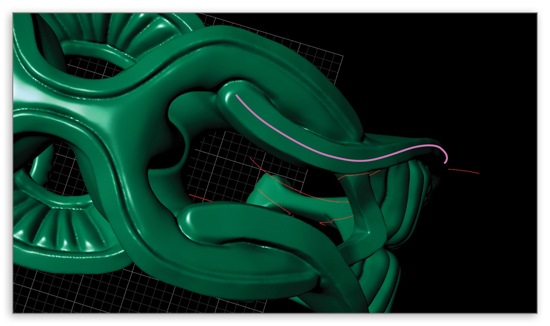
4. Next, use the curve command “project” to place the curve onto the mesh. The curve may require splitting for easier use, but we can now use Matrix builders, such as “gem on curve,” or Rhino commands, such as “orient on curve,” to place gemstones or other engineered objects.
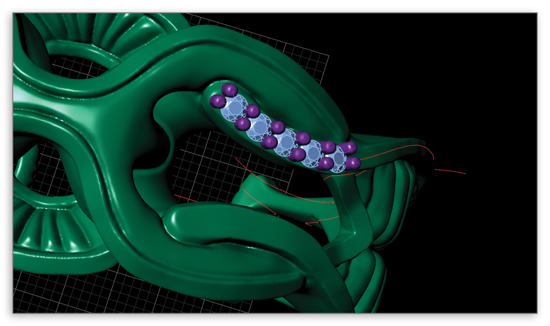
5. Prongs can then be added easily as well. Sometimes curves are not enough, and we would like to use a surface command instead. Again, most surface commands and builders will not work with meshes, but we can create a surface from the mesh that will. Much like with “project,” we need to first decide which viewport the surface should appear in.
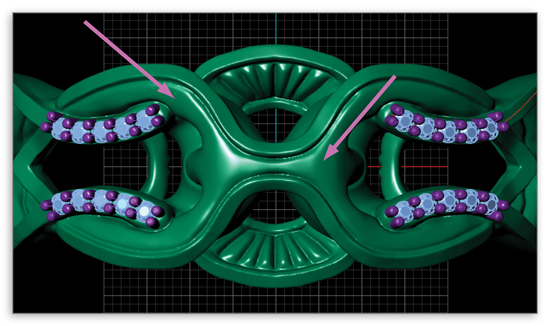
6. For the bracelet, we are going to add gemstones to the open area on the top.
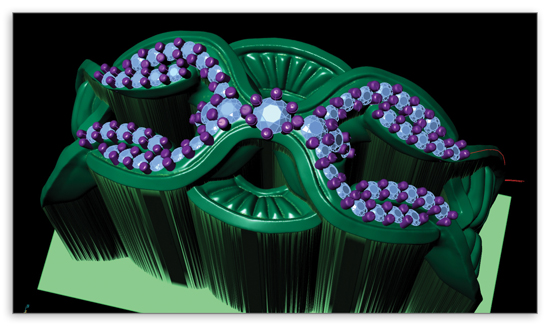
7. Next, use the surface command “drape” to create a surface that will lay right on top of the mesh. For this example, since “drape” is a viewport dependent tool, the surface will be created in the Looking Down viewport. Set the command line option “spacing” to 1 to obtain a surface most accurate to the original. The surface created is almost perfectly coplanar to the top of the mesh, and now we are able to use Matrix builders, such as “gem on surface,” or Rhino commands, such as “orient on surface”.
8. The bracelet mesh can be left visible for most accurate reference while using the draped surface for the chosen command. Gem cutters can be added and cut from the model using the “Mesh Boolean Difference” command, as this command will work with both meshes and polysurfaces. Now, stone and prong placement is complete for the bracelet. There is no reason to treat these programs as an either/or situation when it is clear they can work so fluidly together.