

How to Quickly Model a Flower in Zbrush
Flower Power
A step-by-step guide to making flower models in a flash
By Darla Alvarez, GIA Jewelry Design and Technology Instructor
(Originally Published by MJSA April 2025)
Flowers are a perennially popular jewelry subject, and their organic form lends itself to creation in ZBrush, a powerful digital sculpting software. Array Mesh, an array system that duplicates an object and creates varying patterns and shapes, can ease the creation process even more. We will use Array Mesh to quickly create a flower model.
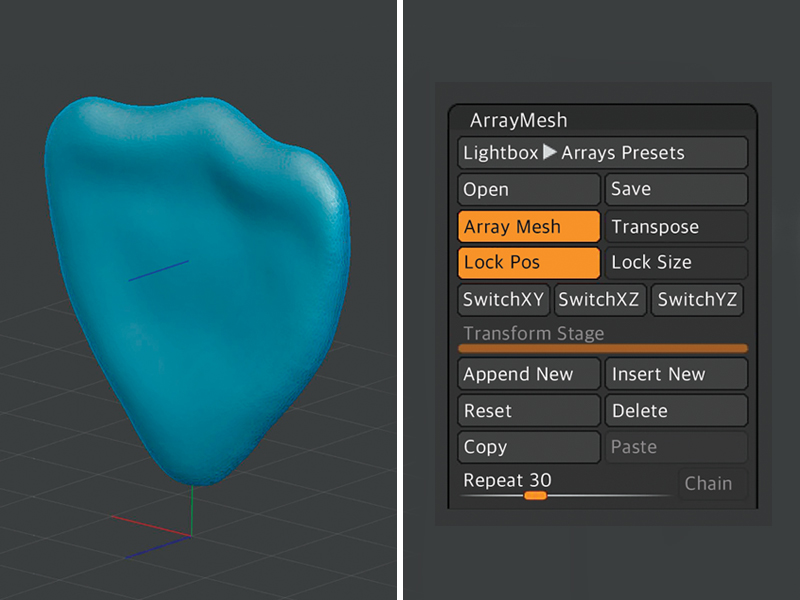
1. Begin by sculpting a sphere into the desired flower petal shape standing along the XY axis plane. It does not have to be perfect at this stage. We will be able to adjust it further as we work on the flower.
2. Next, go to Tool>Subtool>Array Mesh and open the Array Mesh panel. Click on Array Mesh to turn on array for the petal. Enable Lock Pos (position). This setting keeps the array centered at the origin. Set Repeat to 30 to define the number of petals to be arrayed. We can always change the quantity later, if needed.
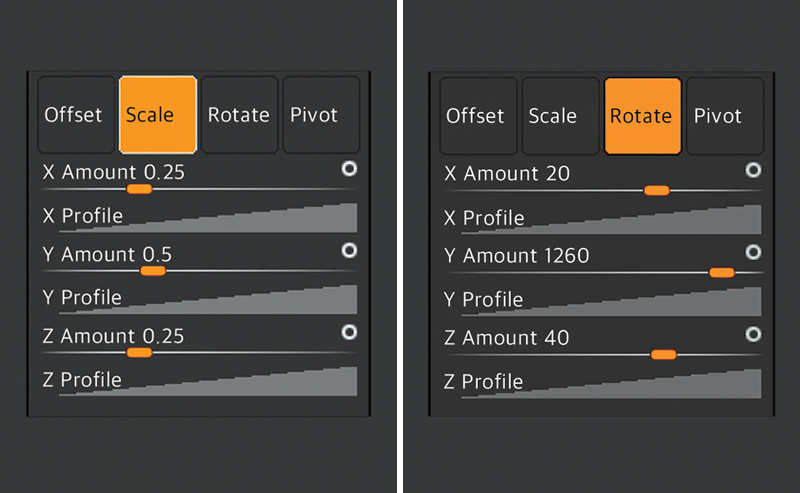
3. Activate Scale. The X, Y, and Z amounts set how much the object will scale along each axis as it is arrayed. It is a scale factor. For example, setting X Amount to 0.75 will scale the petal along the array from its current size down to 75 percent of its current size along the X axis. For our flower, set X Amount to 0.25, Y Amount to 0.5, and Z Amount to 0.25. Keep manufacturing tolerances in mind when scaling the petals down.
4. Activate Rotate. The X, Y, and Z amounts set how much the object will rotate, in degrees, around each axis as it is arrayed. For this flower, set X Amount to 20, Y Amount to 1260, and Z Amount to 40. These settings are a good starting point for creating a flower shape.
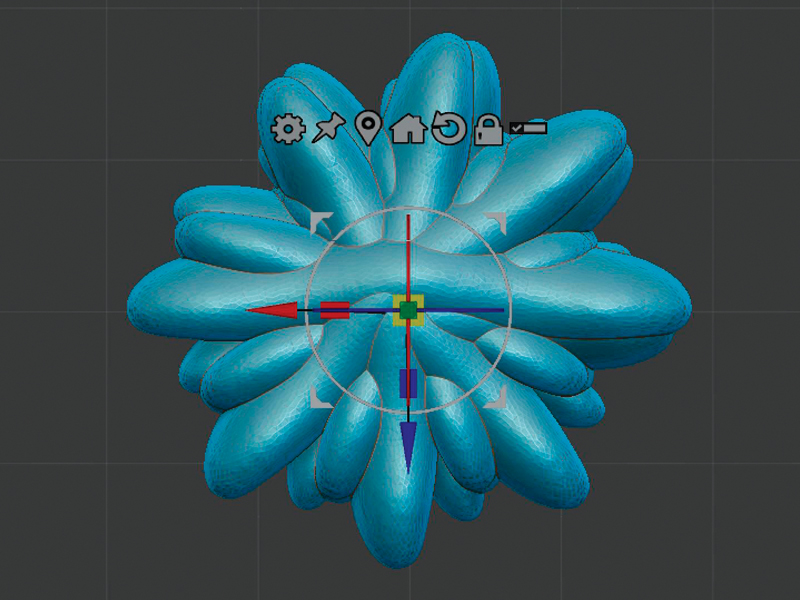
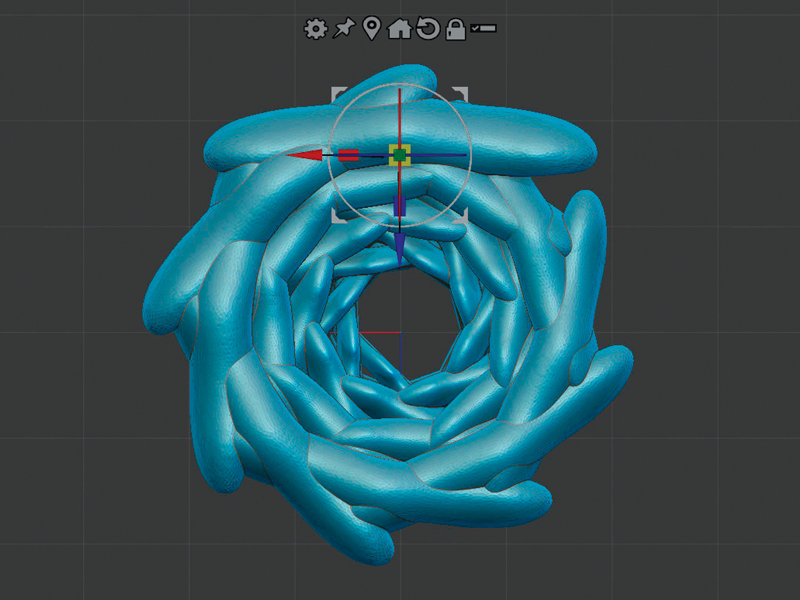
5. The flower doesn’t look much like a flower now, but it is getting ready to bloom.
6. Turn on Gizmo, which centers on the original petal, and pull the petal up along the Z axis. The petals will start to separate.
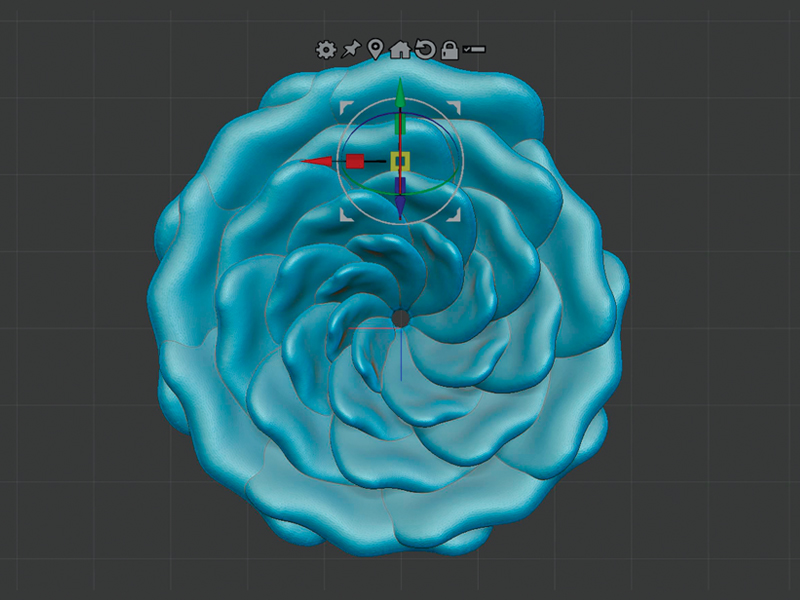
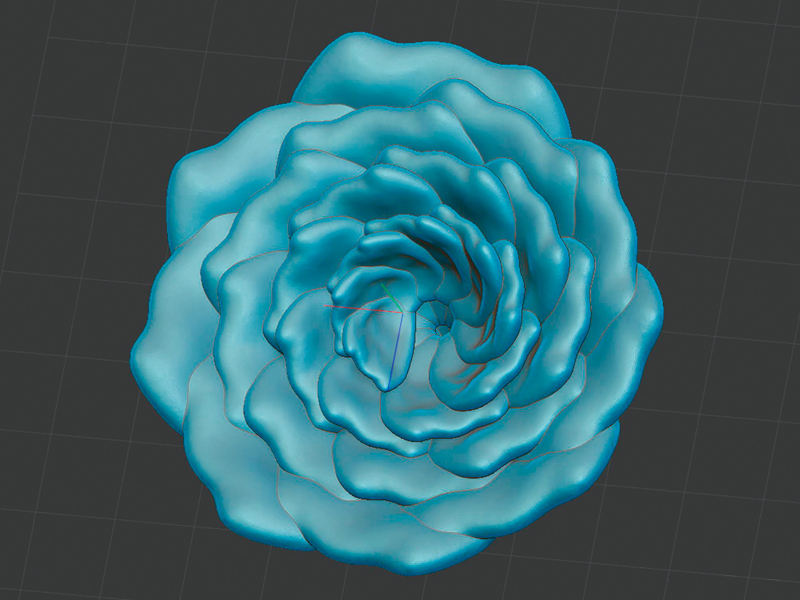
7. Rotate the petal backward around the X axis. The flower form begins to take shape. Turn off Gizmo when complete.
8. While we see 30 petals, the only petal that is real geometry is the original petal we sculpted. The other petals are preview geometry and are not yet “real” for export or 3-D printing. If we turn off Array Mesh, we will see only the starting petal. We can still change the shape of the flower by either adjusting the Array Mesh settings or by sculpting on the original petal. All petals will update as we make changes.
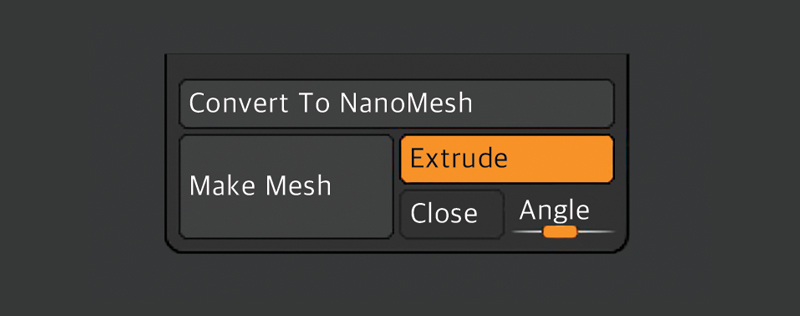
9. Once you get the flower to your liking, click on Make Mesh to make all the petals real geometry. The Array Mesh panel will turn off because the flower is now real geometry and is no longer editable using Array Mesh. You can now use this flower for jewelry design or save it as a library part for future use.