

How Control Points Affect Curvature
Less Is More
Tips for drawing smooth curves in CAD
By Darla Alvarez, GIA Jewelry Design and Technology Instructor
(Originally Published by MJSA April 2024)
When working in CAD, our surfaces will only be as good as the curves that we draw, so it is imperative that we make them as smooth as possible. We will explore how control points impact curvature by drawing the same curve in CAD three ways.
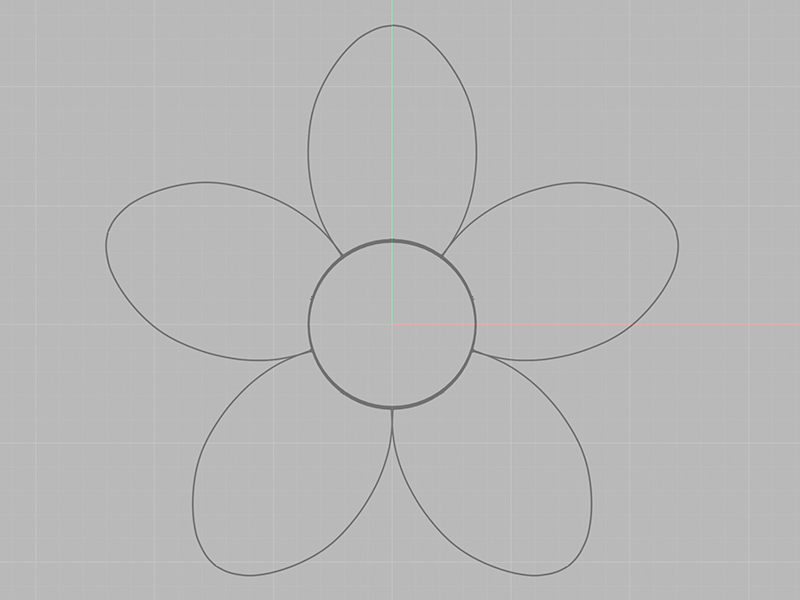
For this example, we will be tracing the petals of a flower image. Often, tracing pictures creates the most inconsistent curvature because we are trying to match a curve to a given shape.
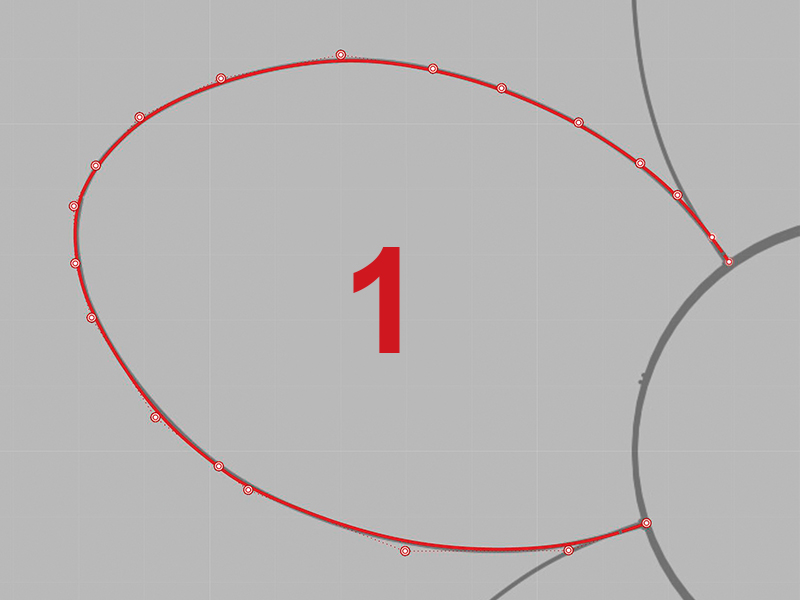
Curve 1 is drawn using Curve: Interpolate Points. The tool itself creates only smooth, kink-free curves, so it is ideal for this organic shape. The curve has 20 control points.

Curve 2 is also drawn using Curve: Interpolate Points. However, this curve has 10 control points.
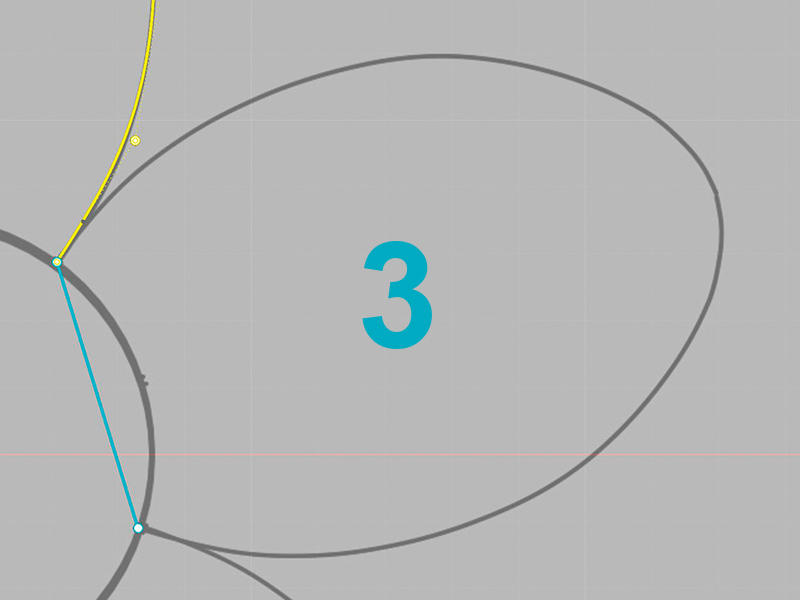
Curve 3 is created with a slightly different approach. Create a single line from one end of the petal to the other. This curve is naturally curvature-free since it is a straight line.
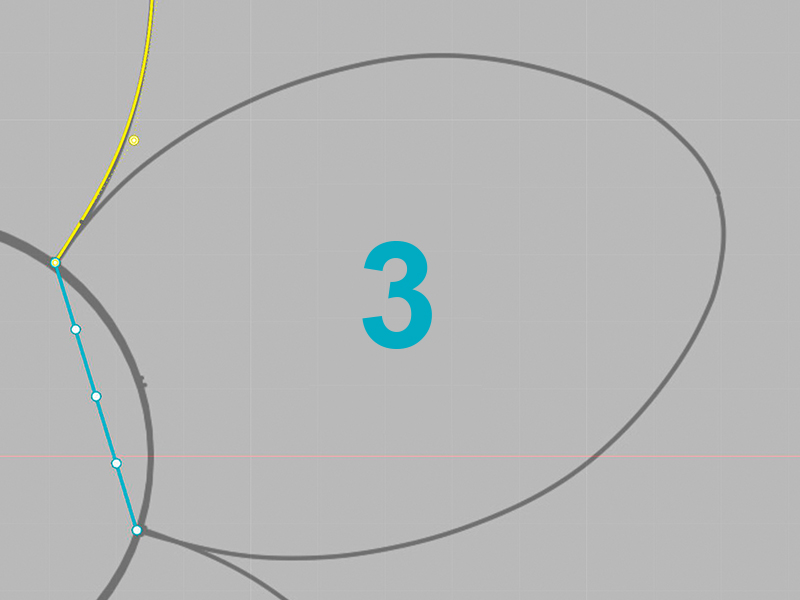
Use Change Degree to change the degree of the curve to 4. In Rhino, we can choose degree 1 to degree 11. By changing the degree, we change the curvature behavior for the line. This curve had two control points but now has five. The number of control points using this method is always degree + 1, which is referred to as a Single Span curve.
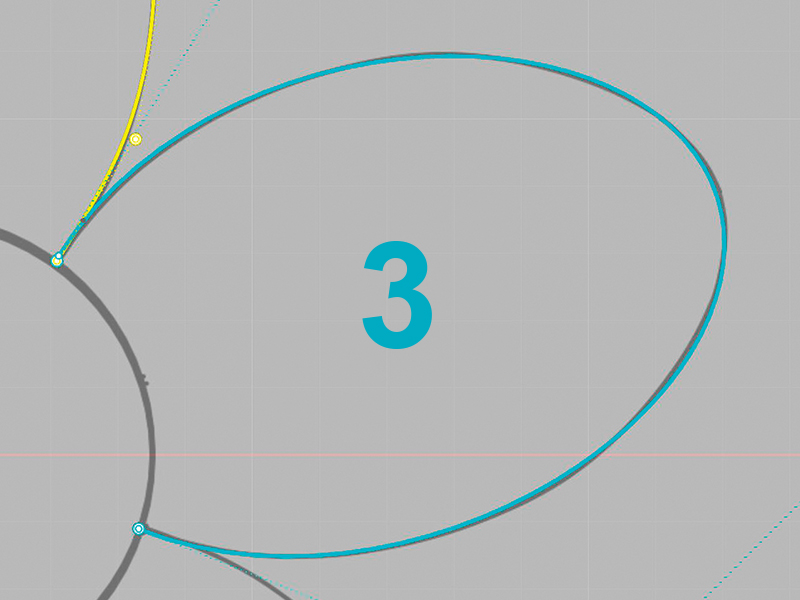
When we move the control points, the curve will bend, and we can trace the petal. This method may not be appropriate for all applications, but it does help us to create the simplest curve possible, which affects curvature.

While all these curves look the same, their respective curvatures are not. Turn on the curvature graph for each curve. The curvature graph visually indicates the rate of change (increase and decrease) of curvature along a curve. We do not need to know the mathematical details of the curves to understand the visual output before us.
In this example, Curve 1, which has the most control points, has a very uneven curvature graph. Even though this curve looks smooth, it is not. This is because there are too many control points for such a simple shape.
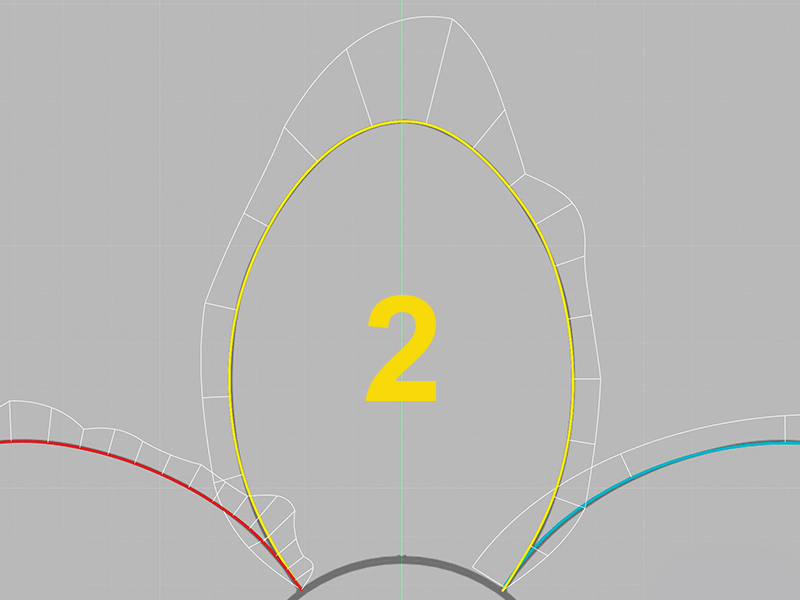
Curve 2, which has half the control points as Curve 1, is smoother. While drawing this curve, we allowed the CAD program to influence the curvature more than our individual point placement. However, the curvature is still not completely consistent.

Curve 3 is by far the smoothest curve. The curvature graph changes at a consistent rate. This curve has half the control points as Curve 2. The CAD program almost fully dictates how the curve changes with our minimal input. This single span curve, which has five control points, produces better curvature than if we just drew a curve like Curve 1 or 2 with five control points.
While all three curves are certainly functional for surface creation, the smoother and simpler the curve, the smoother and simpler the surface we will create, and the fewer problems we will have when trying to assemble surfaces.
When creating curves in CAD, less is more, which also means more successful CAD models.