
How to Calculate the Metal Weight of CAD Models in Rhino
Don’t Wait for the Weight
Calculating the metal weight of your CAD models before production
By Darla Alvarez, GIA Jewelry Design and Technology Instructor
(Originally Published by MJSA September 2023)
It’s important to know the metal weight of CAD models before production to meet anticipated costs or provide estimates. Fortunately, this is an easy process as long as we keep a few things in mind along the way.
The formula for metal weight is as follows:
Volume (mm3) x Density (g/mm3) = Mass (grams)
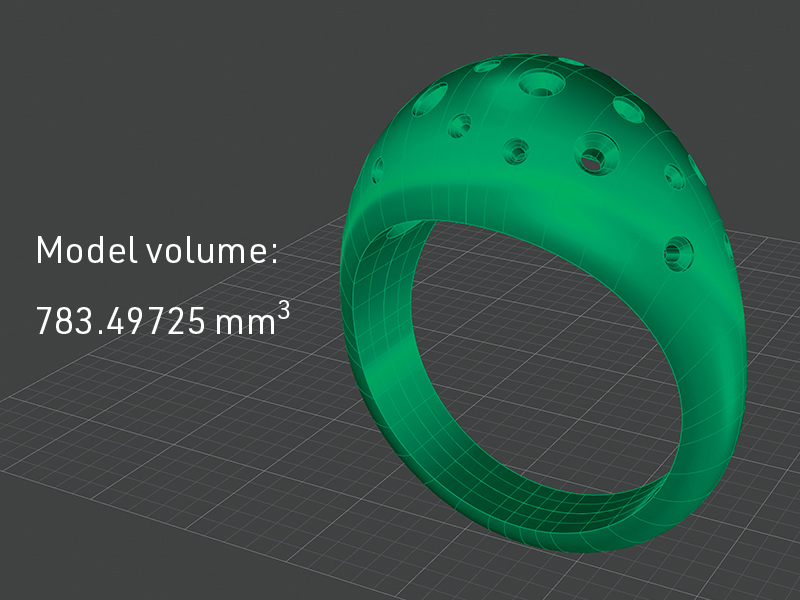
Figure 1
This is a lot less complicated than it may initially look. The first order of business is to calculate the volume of the model. Go to Analyze>Mass Properties>Volume. Select the object for volume calculation and press Enter. The volume will show in the command line in cubic millimeters, which is exactly what we need for the formula. The example ring (Figure 1) is 783.49725 mm3. To get the most accurate volume result, however, we need the model to be Boolean unioned, closed, and the sole selected object.
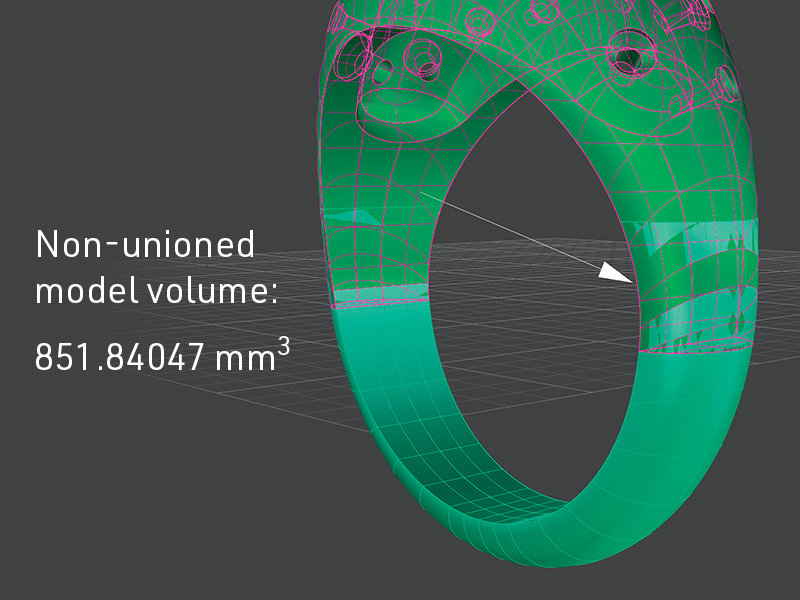
Figure 2
If we do not Boolean union the model, the volume calculated will be higher and the metal weight calculation will be greater than the actual cast piece. This is because areas where the model overlaps will be calculated twice. Boolean unioning the model will create one solid shell from which we can get an accurate volume. This non-unioned model’s volume (Figure 2) is 851.84047 mm3, much more than the first model.
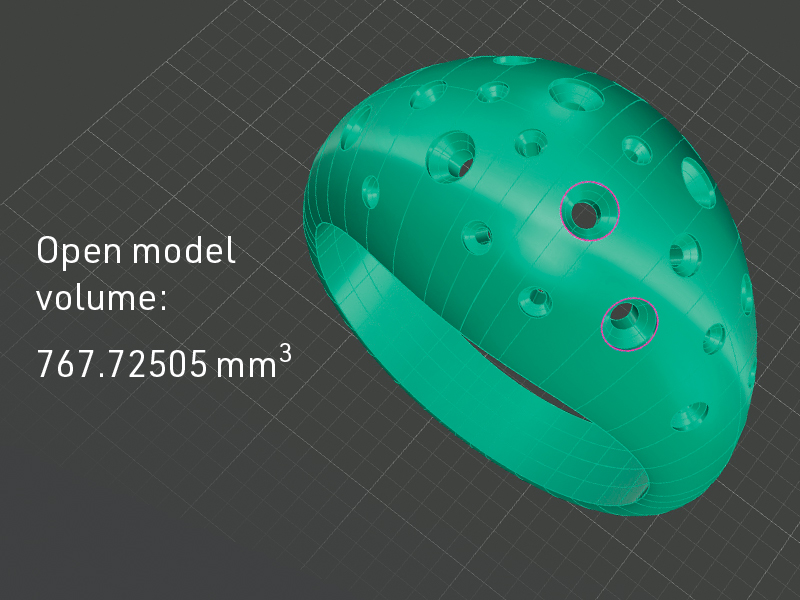
Figure 3
The model needs to be a single shell, but it also has to be a closed shell. If we try to find the volume of an open object, we are likely to get inaccurate results. All surfaces must enclose and bound a space. Volume will still be calculated as usual, but we will get a warning that the volume may not be meaningful. This model (Figure 3) has two naked edges, which means it is an open model. Its volume is 767.72505 mm3, much less than the first model.
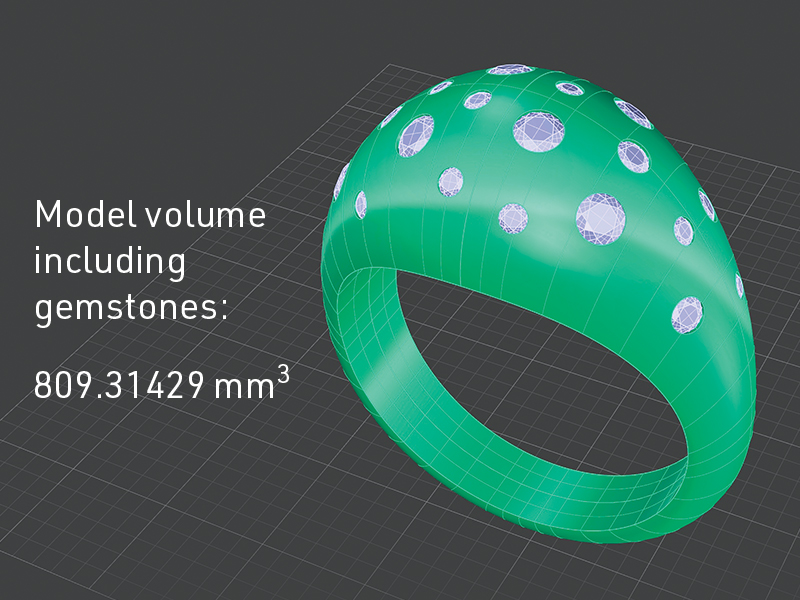
Figure 4
We need to make sure we are calculating only the volume of the model and not the other CAD objects we may have used to create the model. It is easy to accidentally window over everything onscreen before running the Volume command. Be sure not to select any gemstones, through cutters, or any other solid, when using Volume. We want only the volume of the object being cast. When we select the model and the gemstones (Figure 4), the volume is 809.31429 mm3, much more than the first model.
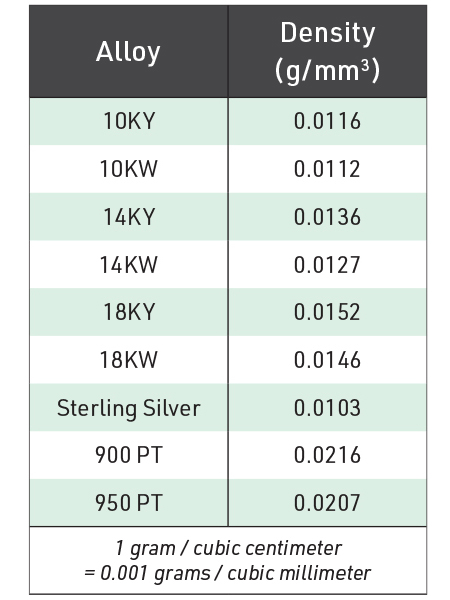
Now that we know how to accurately determine the volume, we can focus on the density. Figure 5 features commonly cast metals and their respective densities in grams over cubic millimeters.
These numbers will vary slightly depending upon the specific alloy used but are helpful for closely approximating gram weight. Consult your metals provider for a specific alloy’s density. Let’s figure out the weight for the first ring, which is Boolean unioned, closed, and without any gemstones or other objects, in 18 karat yellow gold. Using our formula from earlier, we can calculate:
783.49725 mm3 (Volume) x 0.0152 g/mm3 (Density) = 11.90916 g (Mass)
In 18k yellow gold, the ring will weigh about 12 grams. For comparison, let’s do sterling silver:
783.49725 mm3 (Volume) x 0.0103 g/mm3 (Density) = 8.07002 g (Mass)
In sterling silver, the ring will weigh about 8 grams. By determining the metal weight and associated costs for the model, we are now one step closer to making the virtual real.