

Using ShowEnds to Troubleshoot Open Curves
Curve CAD-tective
Tips for investigating the causes of poor surface curves
By Darla Alvarez, GIA Jewelry Design and Technology Instructor
Surfaces are only as good as the curves used to create them. If you have poor surfaces, investigate the curves you used to create them. An excellent tool for doing this is the ShowEnds command.
Let’s look at how it works. At a quick glance, the curves in Figure 1 appear to be fine. However, if you were to use them for surface creation, you would quickly run into problems. If you select the three curves and type “What” into the command line, a separate window will pop up with object property details, showing that all three of these curves are open.
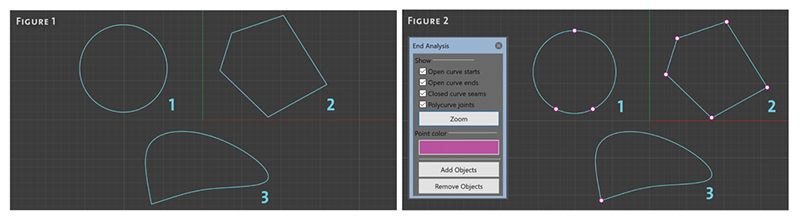
Type “ShowEnds” into the command line, or find it in the Analyze, Curve Tools, or Diagnostics toolbars. (The tooltip will say Show curve ends.) The command line will ask you to select curve objects for end display, and you can select as many curves as you want to analyze. The End Analysis control opens and displays various information about the curves and marks this information with pink dots, as shown in Figure 2.
When trying to find the start and end of a curve, uncheck Closed Curve Seams and Polycurve Joints to limit the markings to only the start and end of the curve. Note that starts and ends are only displayed for open curves, such as those in this example. When analyzing closed curves, check Closed Curve Seams. Polycurve Joints displays a marker at the join location of the segments of a curve.
With only Open Curve Starts and Open Curve Ends checked, you will see fewer markers. The problem with your curves will then become obvious. For example, in Figure 3, the start and the end of curve 1 are not at the same location and therefore do not form a closed curve. But what about curves 2 and 3? They still look like singular markers, which seems correct.
To find out what is wrong with curve 2, click on Zoom in the End Analysis control. Initially, this will show all ends, but the command line will allow you to select All (its current state), Current (the first marker in the selection), Next (the next marker in the selection), Previous (the previous marker in the selection), or Mark (marks ends with point objects).
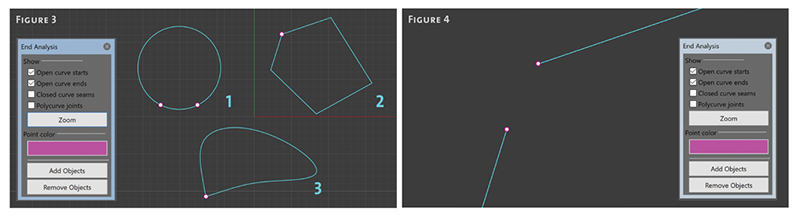
Choosing Current will zoom in your view and show you that the start and the end do not meet; there is a gap, as shown in Figure 4.
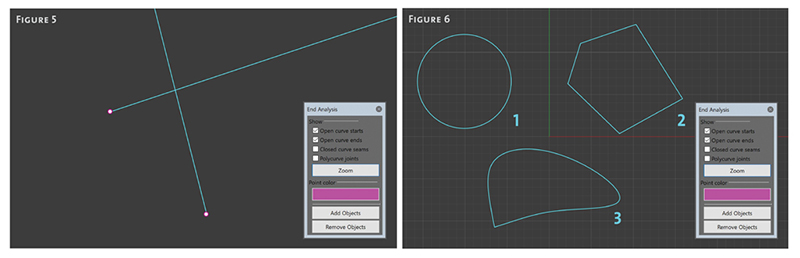
To find out what is wrong with curve 3, choose Next to zoom in. You will see that curve 3 also does not meet, but this time it is because the curve is self-intersecting, as shown in Figure 5.
This was not immediately evident by running the command. You had to zoom in to find the error, a step that is often necessary when troubleshooting curves.
Use basic commands such as Split, Trim, and Explode, as well as moving control points to meet starts to ends, to correct these curves and form closed curves. It is useful to leave the End Analysis control open while doing this. Upon successfully closing the curves, the markers disappear, confirming that the starts and ends now meet (as seen in Figure 6).
If necessary, click Add Objects to analyze additional curves in the selection or click Remove Objects to remove any of the selected curves from analysis. When done, close the End Analysis control to turn off markers and stop the analysis of the selected curves. Troubleshooting open curves has just become a whole lot easier.