

Selection Struggle
Command tips for selecting objects in Rhino and Matrix
By Darla Alvarez, GIA Jewelry Design & Technology Instructor
Some of the challenge of CAD modeling lies solely in being able to work on a specific object. As your model be-comes more complex, with more curves, surfaces, gems, and the like, it is difficult to only select the intended target. Many commands exist that can aid modeling, and it is certainly worth diving into the manual now and again to find these hidden gems. The following are a few of the more interesting and lesser-known commands that can help alleviate the selection struggle.
1a:
1b:
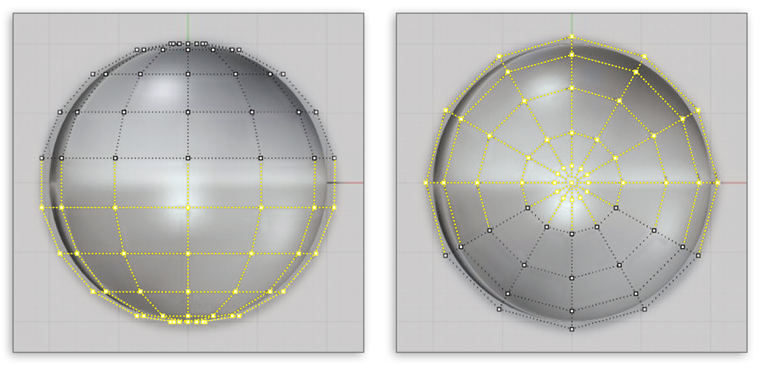
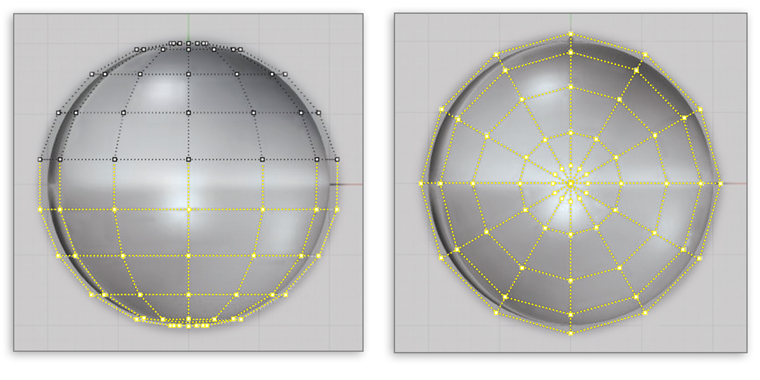
1. When working with control points, selecting one point without selecting another is time-consuming. In Figure 1A, you can see that by selecting points in the Top Viewport, all of the points behind them are highlighted as well. To select only those points that are facing the camera, type “CullControlPolygon” into the command line. This changes the display of control points so only those facing the camera are displayed and, therefore, are the only ones you can select. In Figure 1B, the exact same points are selected from the Top Viewport as in the first image, but, as shown in the Front Viewport, only those that are visible in the Top Viewport are selected. To deactivate the command, type “CullControlPolygon” into the command line again.
2a-b:
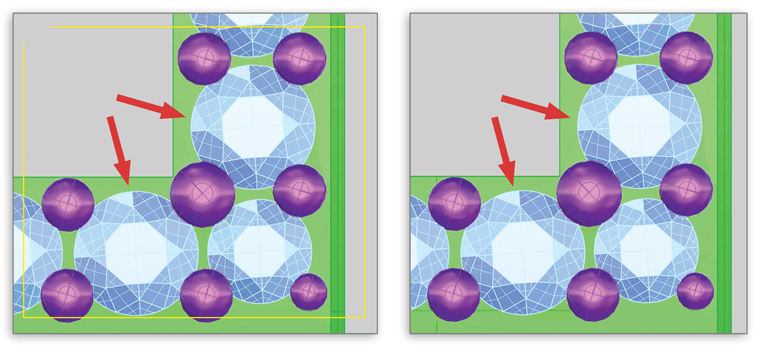
2. Using a selection box from the left windows over items, while using a selection box from the right crosses them. Windowed objects must be completely enclosed within the selection box, whereas crossed objects need only touch the box. The limitation comes when trying to select an object that can only be crossed (or windowed) from the opposite direction. In Figure 2A, windowing over the two larger stones without selecting the smaller stone is not possible. It would be easier to select these stones by crossing, but crossing can only be done from the right, and you still end up selecting the smaller stone as well. With the green and purple layers locked, type “c” into the command line to cross from the right or left for the next se-lection only. In this way, as seen in Figure 2B, the two larger stones can be selected without the smaller stone. Type “w” in the command line to enable windowing from either direction.
3a-b:
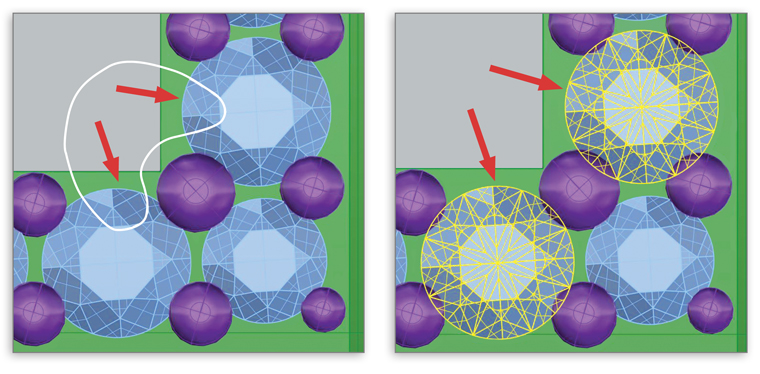
3. There is another useful command you can use to select the two larger stones. Again, with the green and purple layers locked, type “Lasso” into the command line and, using the cursor, outline the objects to be selected. For Figure 3A, the “SelectionMode=Crossing” so the lasso need only touch the intended target. The mode can also be set to “Windowing,” if needed. After ending the command, only the two stones are selected (Figure 3B).
4a-b:
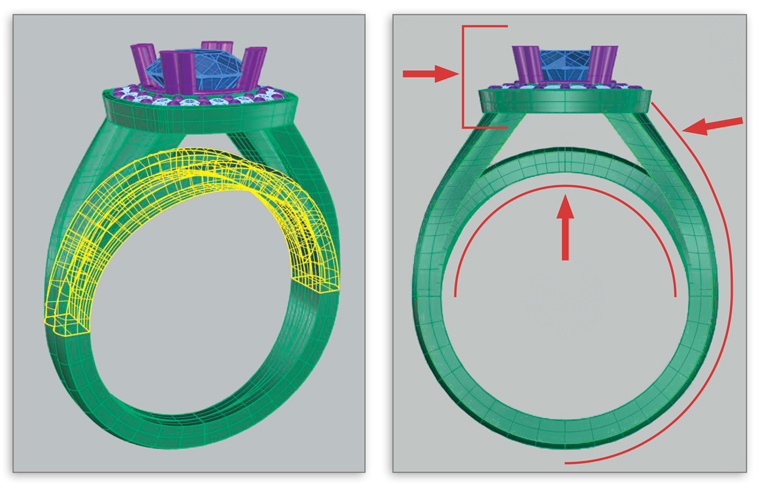
4. Hiding parts of a model while working on an area is useful—until so many items are hidden that showing them all again becomes a mess, especially if only a few of those hidden objects are needed. Type “-Hide” into the command line, select objects to hide, press enter, and then name those objects. A letter or number system can be used to name them or the items can be given a name, such as “supportbar” for the example in Figure 4A. For the example ring, three distinct “hide” groups are created: the top halo with stones and prongs, the support bar, and the shank, each labeled by name or number (see Figure 4B). To show the items, type “-Show” into the command line and then the name given to the objects to be shown, for example, “supportbar.” Those will be the only objects shown, leaving all other groups hidden.
5a-b:
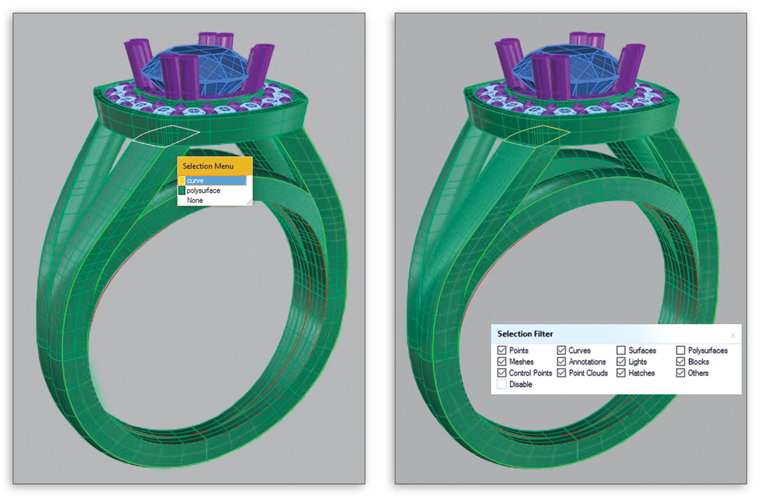
5. Selecting objects buried within other objects can be cumbersome, with the program often asking which object is the target (see Figure 5A). This is especially frustrating if none of the objects listed is the one you are trying to select. Type “SelectionFilter” into the command line to bring up a toolbar that lists all of the different kinds of NURBS objects. As you can see in Figure 5B, removing the checkmark from surfaces and polysurfaces will make it possible for you to select only the intended curve without the selection menu appearing. The solids will not be selectable until enabled once more. You can then work only on the curves, solids, or points that are necessary for that step.