

Get in Control
Using control points to refine CAD designs
By Darla Alvarez
Many CAD programs feature integrated, jewelry specific tools to make modeling more efficient. For example, using profiles along a rail is the most common approach to forming the primary shape of a design, and, most of the time, a CAD program effortlessly blends these shapes for the desired result. Occasionally though, the desired result is beyond the software’s blending capability, and further dissection is required to create a more pleasing shape. However, by turning on and manipulating the control points, you will be able to easily modify the design.
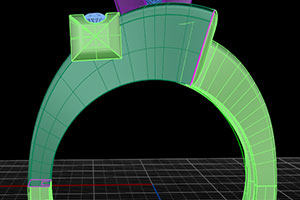
1. In this design, using only two profiles (marked in purple) along a rail makes the shank intersect with another design element.
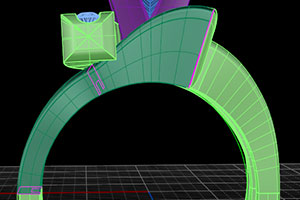
2. Adding a third profile generates an awkward dip in the shank that disrupts the aesthetic flow. Oftentimes, designers believe that adding more profiles will correct the issue, but forcing the CAD program to blend more shapes tends to make the blending worse.
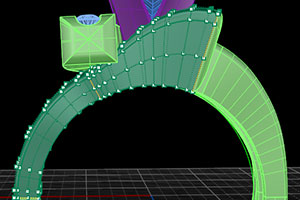
3. Control points can help with this. However, since they are not available for a polysurface, the polysurface must be broken down into its individual components using the explode function. Once the shank is in multiple singular surfaces, select all of the surfaces and turn on control points, which will then allow you to manipulate the edges.
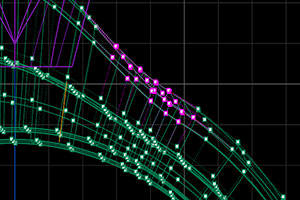
4. The key to handling so many points at once without destroying the model is to grab the points in large swaths. Individual positioning is rarely successful and usually leaves an uneven surface. Pull these points up and out gradually, deselecting any undesired points grabbed by holding the control key while clicking on points unintentionally selected.
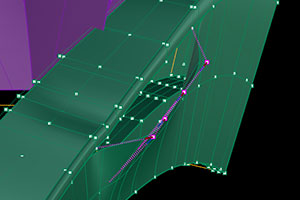
5. Use caution when grabbing points along seams between adjoining surfaces. Each point along an edge has a matching point on the attached edge that must accompany it in order to maintain a fully solid structure. Always be certain to grab pairs of control points along edges. Not doing so creates a hole in the model (shown here on the side of the shank) that is not always evident if the hole is small and the points are only slightly misaligned.
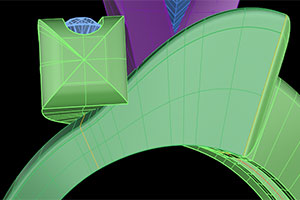
6. Once the surfaces are satisfactorily adjusted, you can begin reassembling the individual surfaces of the shank using the join function. As long as no edges are misaligned (leaving open areas), the shank will once again become a solid object suitable for printing. In this particular project, the adjustment is subtle, but the resulting shank conforms to the other design elements and blends better than that which the CAD program could create.
It is not always necessary to adjust a model, especially when the results may very well go unnoticed by a client. However, the refined shape is the kind of detail that separates great designers from good designers, and it is worth the time to express the artistry that jewelry deserves.